
Independent Mode – Use the Print Server in a Local Network Without Internet Access
This mode allows your computer to communicate directly with the print server without connecting to a router or the Internet.
Step 1: Connect to the Print Server Wi-Fi
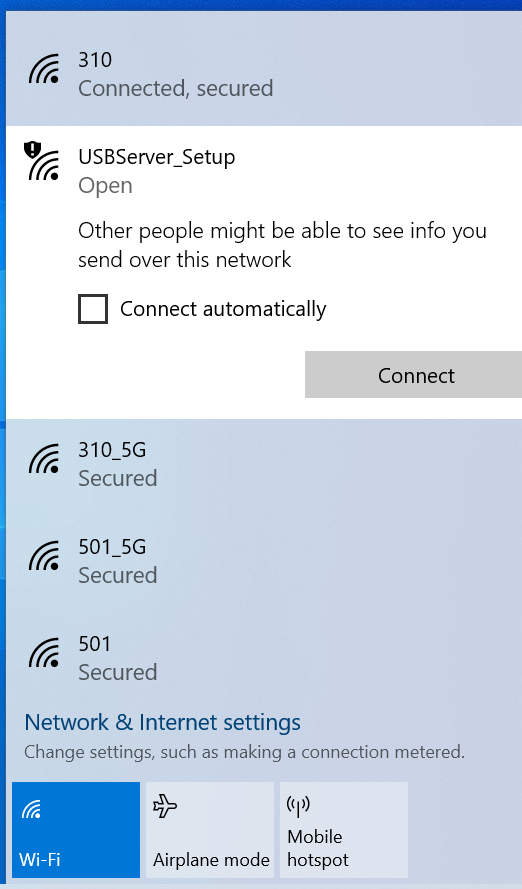
- On your computer, open the Wi-Fi settings.
- Connect to the wireless network:
SSID: USBServer-Setup
Note: This Wi-Fi network is created by the print server and does not provide Internet access. This is normal.
If a network configuration page pops up, you can close it.
Step 2: Add the Printer Manually
For Windows 11
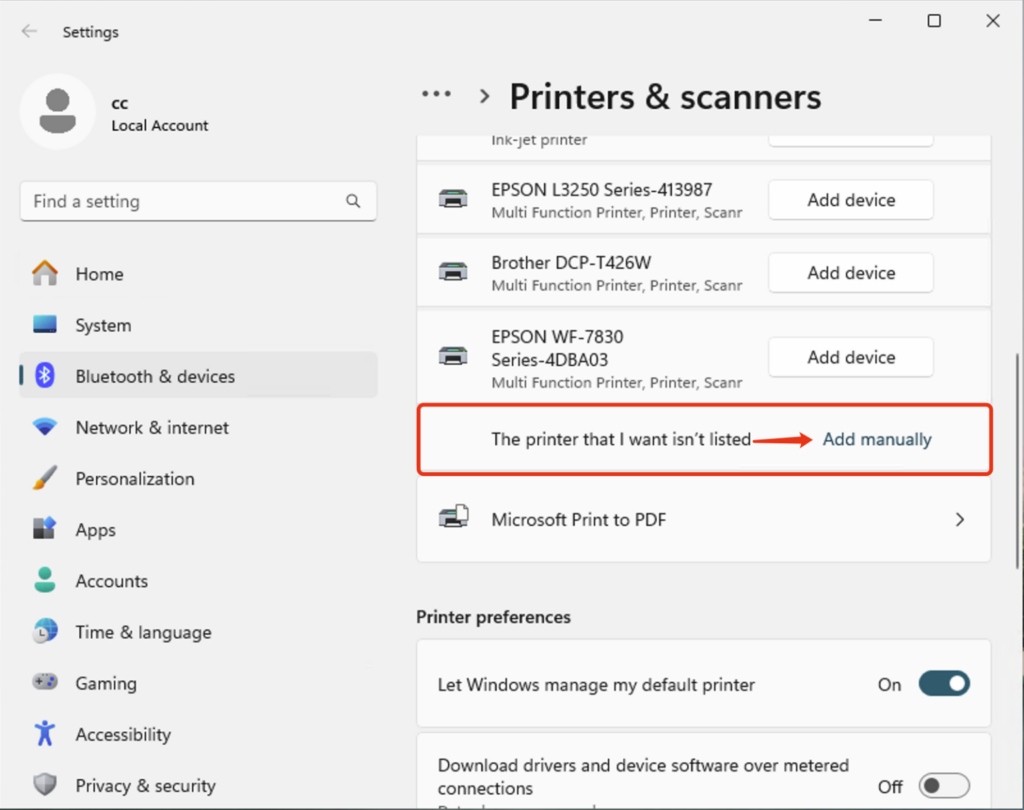
- Open Settings.
- Click Bluetooth & devices → Printers & scanners.
- Click Add device.
- Select The printer that I want isn’t listed.
- Click Add a printer manually.
For Windows 10 and Earlier
- Open Control Panel.
- Navigate to Devices and Printers.
- Click Add a printer.
- Select The printer that I want isn’t listed.
Step 3: Create a Standard TCP/IP Port
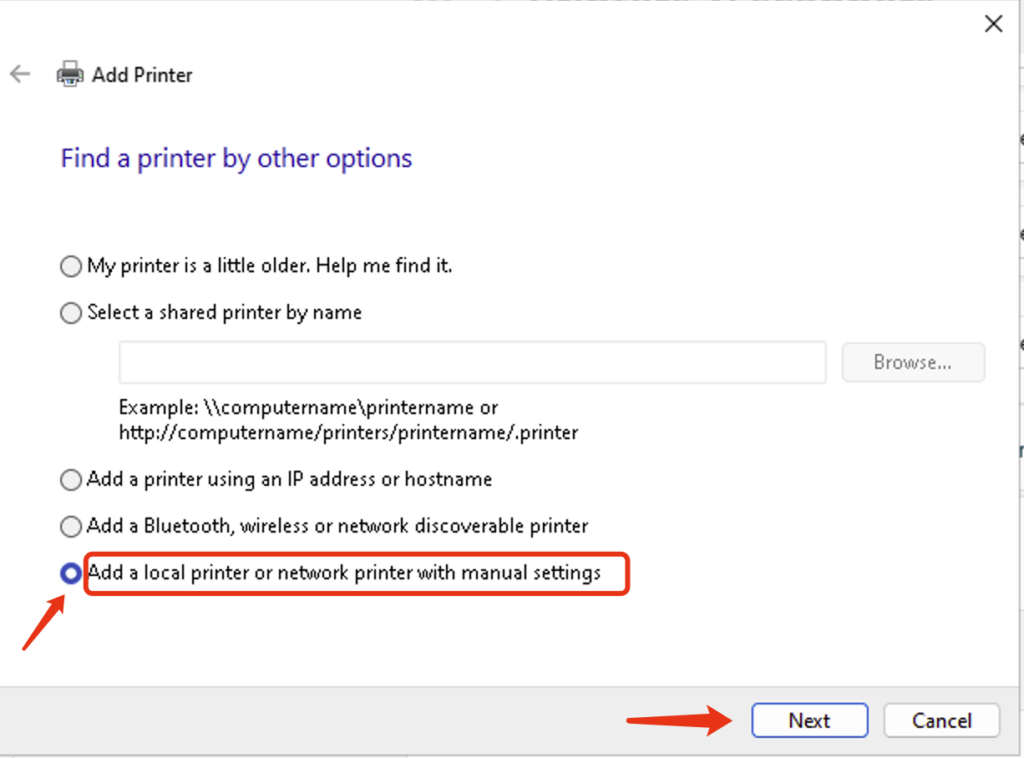
- Select Add a local printer or network printer with manual settings.
- Click Next.
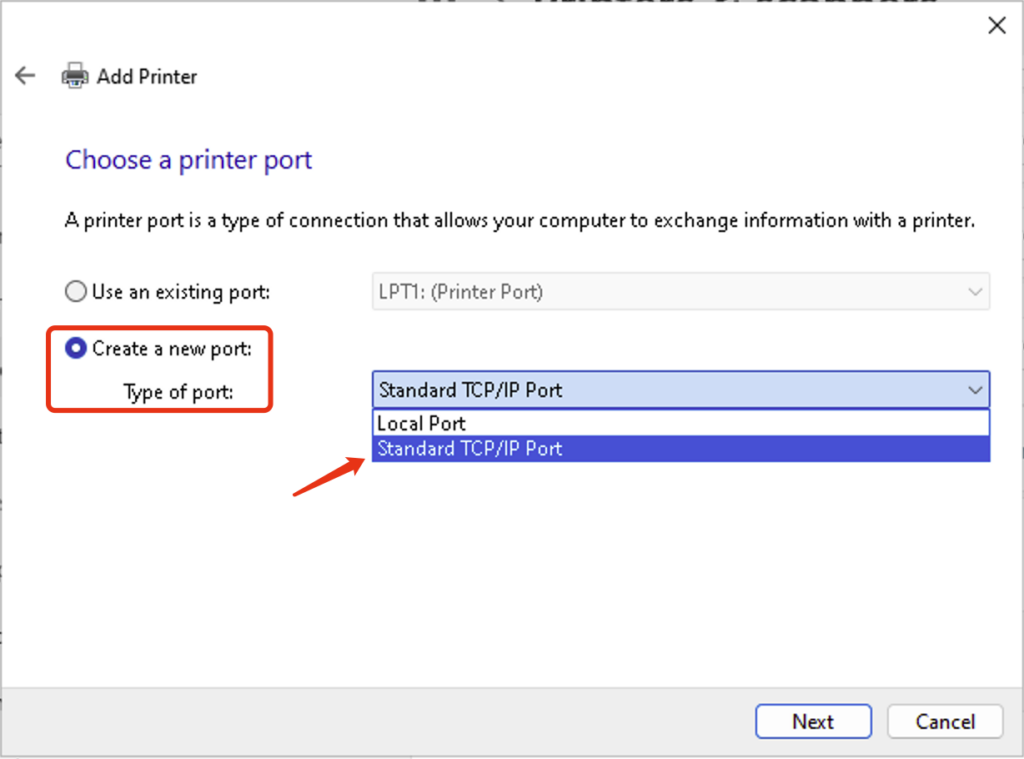
- Choose Create a new port.
- Select Standard TCP/IP Port.
- Click Next.
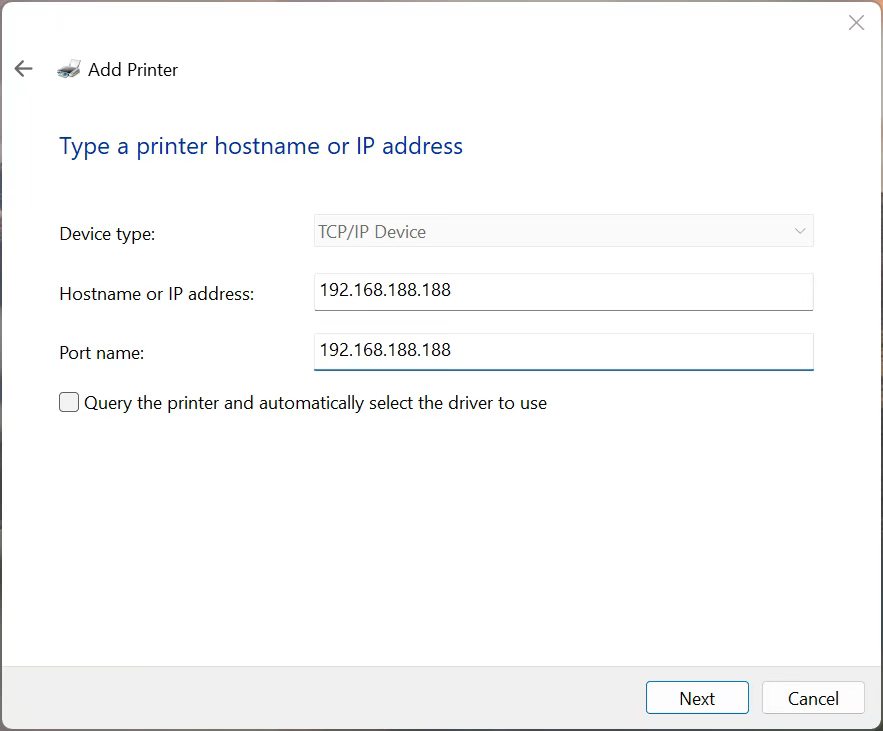
Step 4: Enter the Print Server IP Address
- In the Hostname or IP address field, enter:192.168.188.188
- Optionally customize the port name.
- Uncheck:Query the printer and automatically select the driver to use
- Click Next.
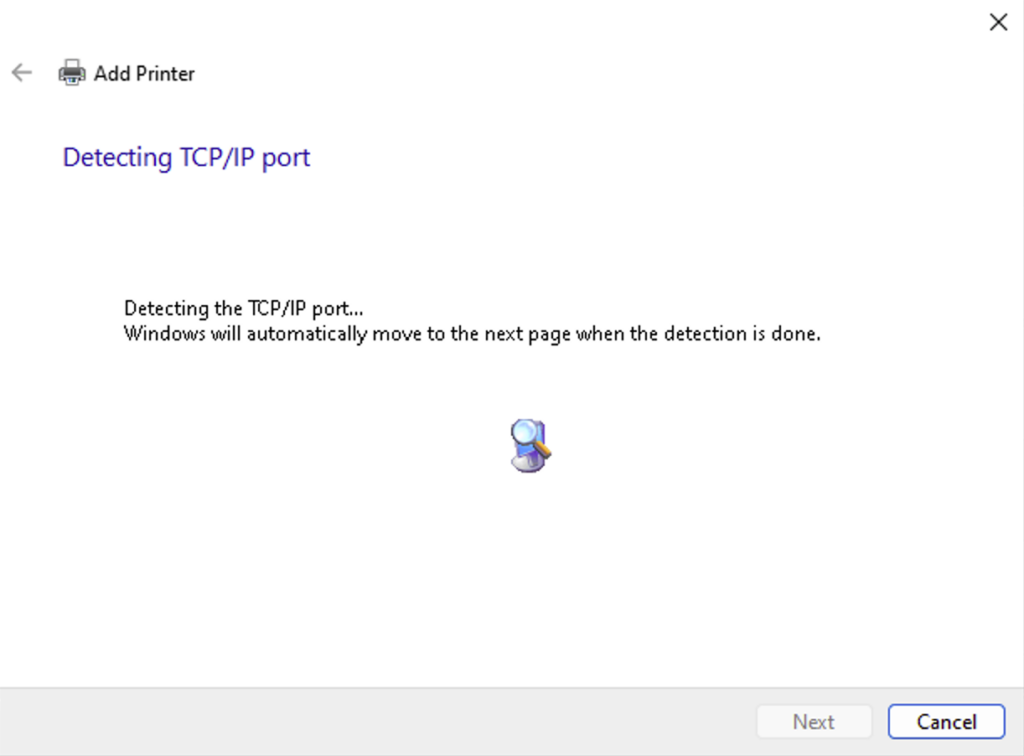
Step 5: Wait for Port Detection
Windows will detect the TCP/IP port automatically.
This process may take approximately 1 minute.
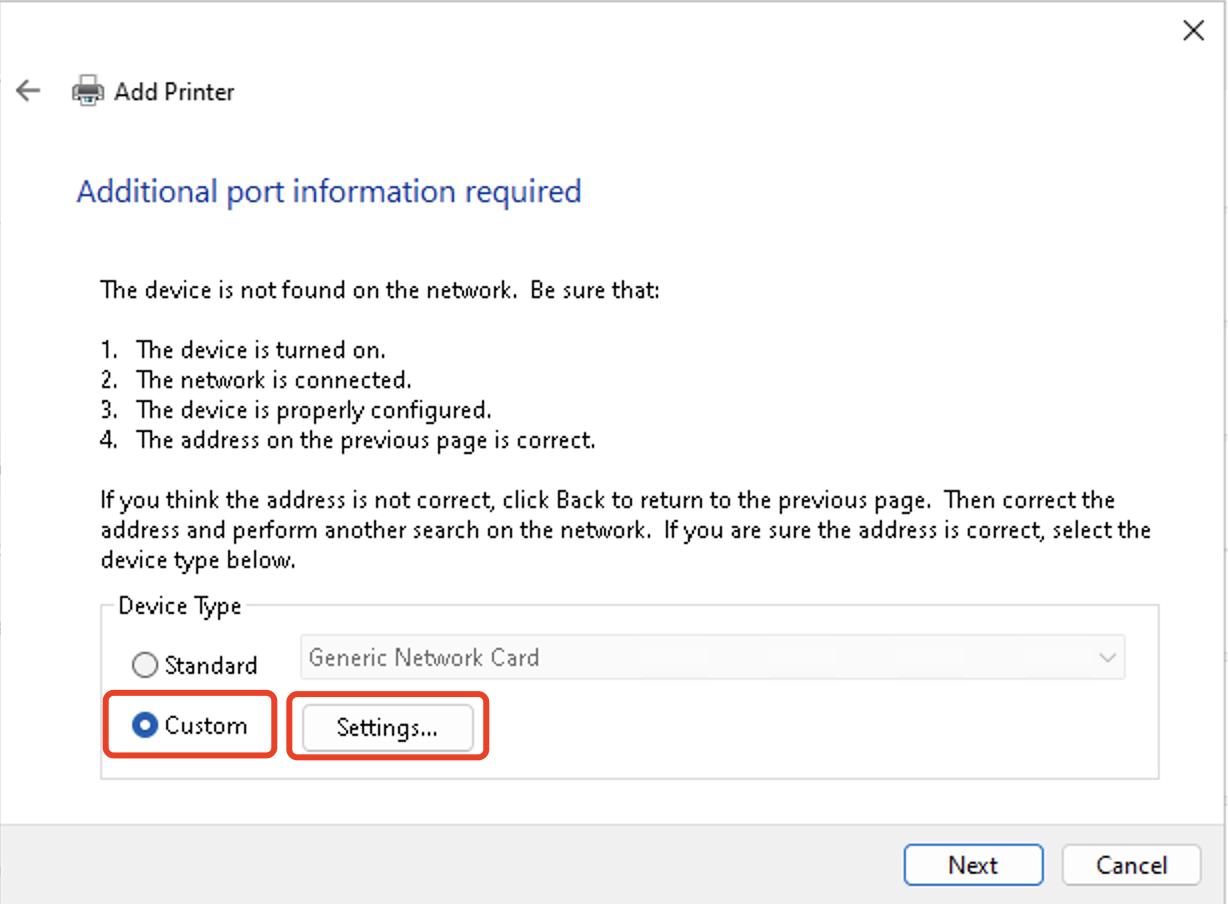
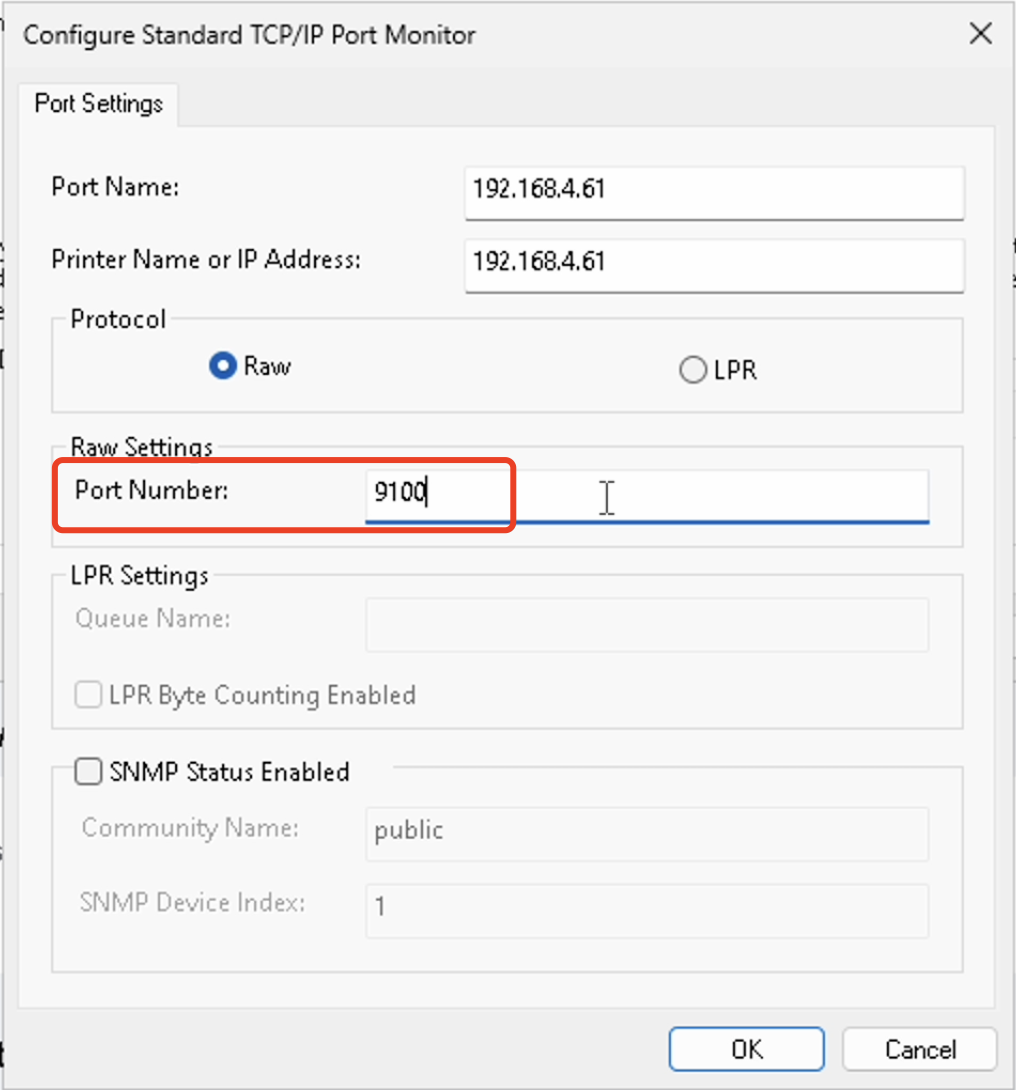
Step 6: Configure the Port Number
- Select Custom.
- Click Settings.
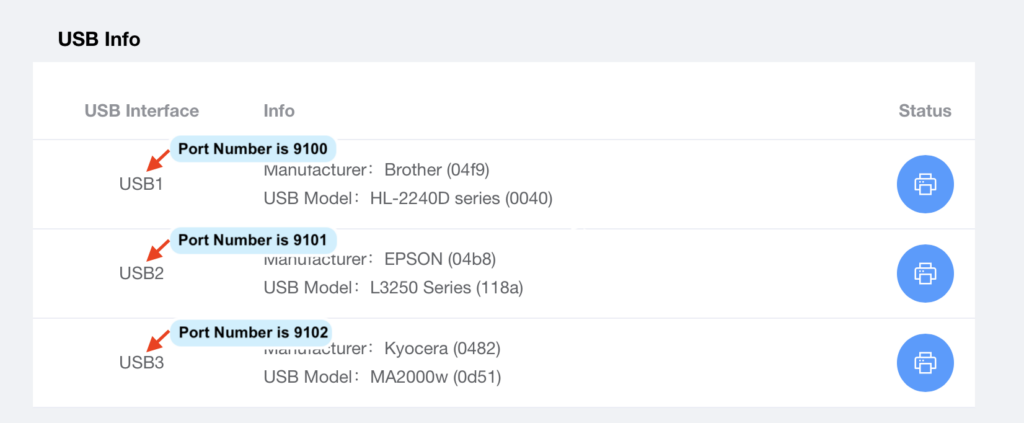
- Enter the port number corresponding to the USB port where your printer is connected.
| USB Port | Port Number |
|---|---|
| USB1 | 9100 |
| USB2 | 9101 |
| USB3 | 9102 |
Make sure the selected port matches the USB port used by your printer.
- Click OK and then Next.
Step 7: Select the Printer Driver
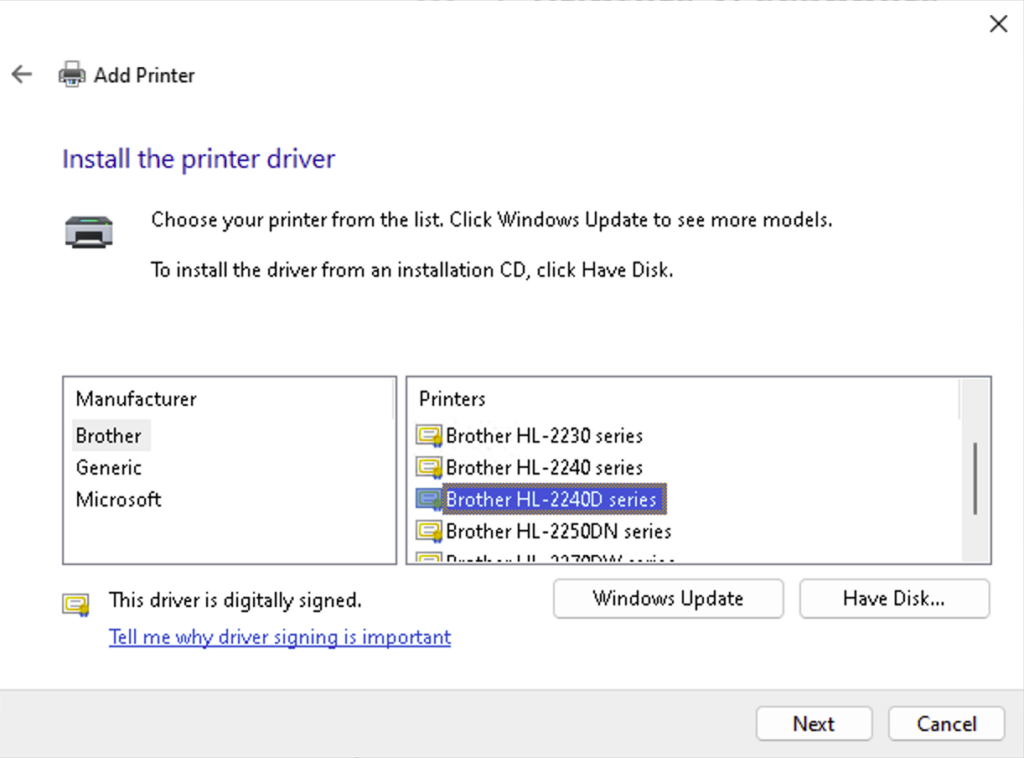
If the printer driver has already been installed on the computer:
- Select the printer manufacturer from the list.
- Select the printer model.
- Click Next.
Driver Not Found?
If your printer model does not appear in the list, the printer driver is not installed on the computer.
Please download and install the printer driver from the printer manufacturer’s website before proceeding.
Step 8: Complete the Installation
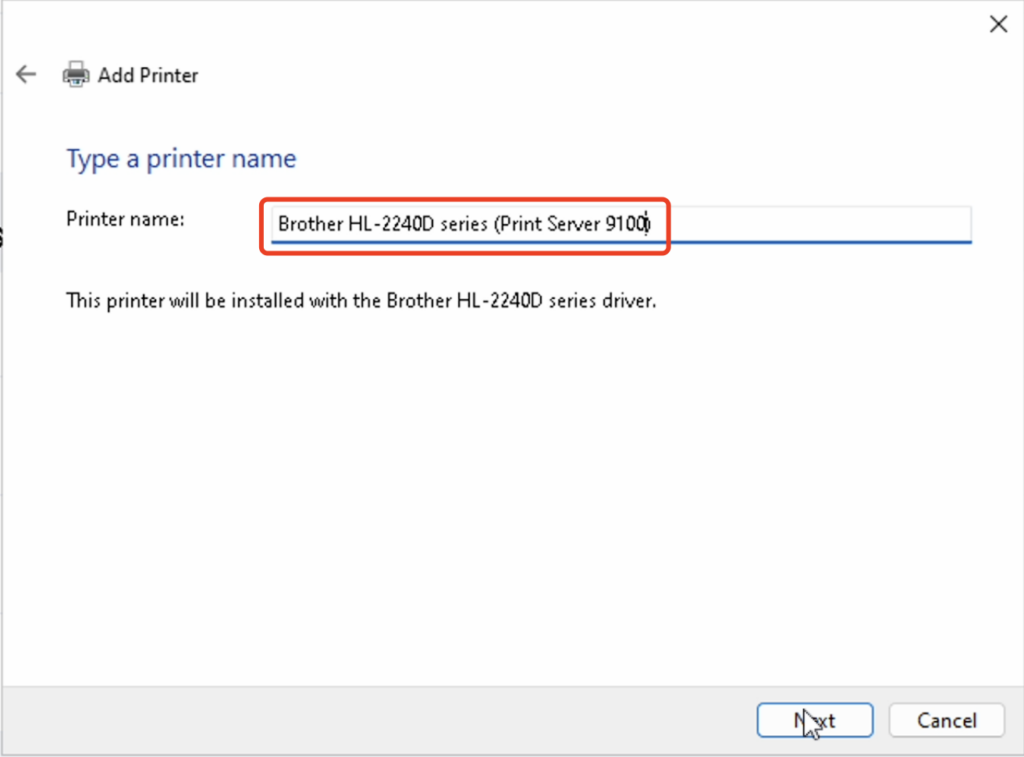
- Enter a printer name (optional).
We recommend including words such as “Print Server” in the printer name for easier identification.
Example:
- HP LaserJet M404 Print Server
- Canon LBP2900 Print Server
- Epson L3250 Print Server
- Click Next to finish the installation.
Installation Complete
Your computer can now print directly through the print server while connected to the usbserver-setup Wi-Fi network, without requiring a router or Internet connection.