
How to Set a Static IP Address on the Xiiaozet LK301E Without a DHCP Server
If your network does not have a DHCP server and the LK301E’s LED keeps flashing, you can manually assign a static IP address by connecting the device directly to your computer. An Internet connection is not required.
Step 1: Connect the LK301E to Your Computer
- Connect the LK301E’s LAN port directly to your computer’s Ethernet port using a network cable.
- Make sure the LK301E is powered on.
Step 2: Configure Your Computer’s Ethernet Settings
- Open Control Panel → Network and Sharing Center → Change adapter settings.
- Right-click Ethernet and select Properties.
- Double-click Internet Protocol Version 4 (TCP/IPv4).
- Select Obtain an IP address automatically, then click OK.
Step 3: Access the LK301E Management Interface
Open your web browser and enter the following default IP address:
http://169.254.1.188
Default password: admin
Press Enter to access the LK301E management interface.a d
Step 4: Assign a Static IP Address
- In the left sidebar, click LAN1 Interface.
- Select Static IP.
- Enter a new IP address that matches your network’s subnet and does not conflict with any other device.
- Enter the appropriate subnet mask and other required network settings.
- Click Save to apply the changes.
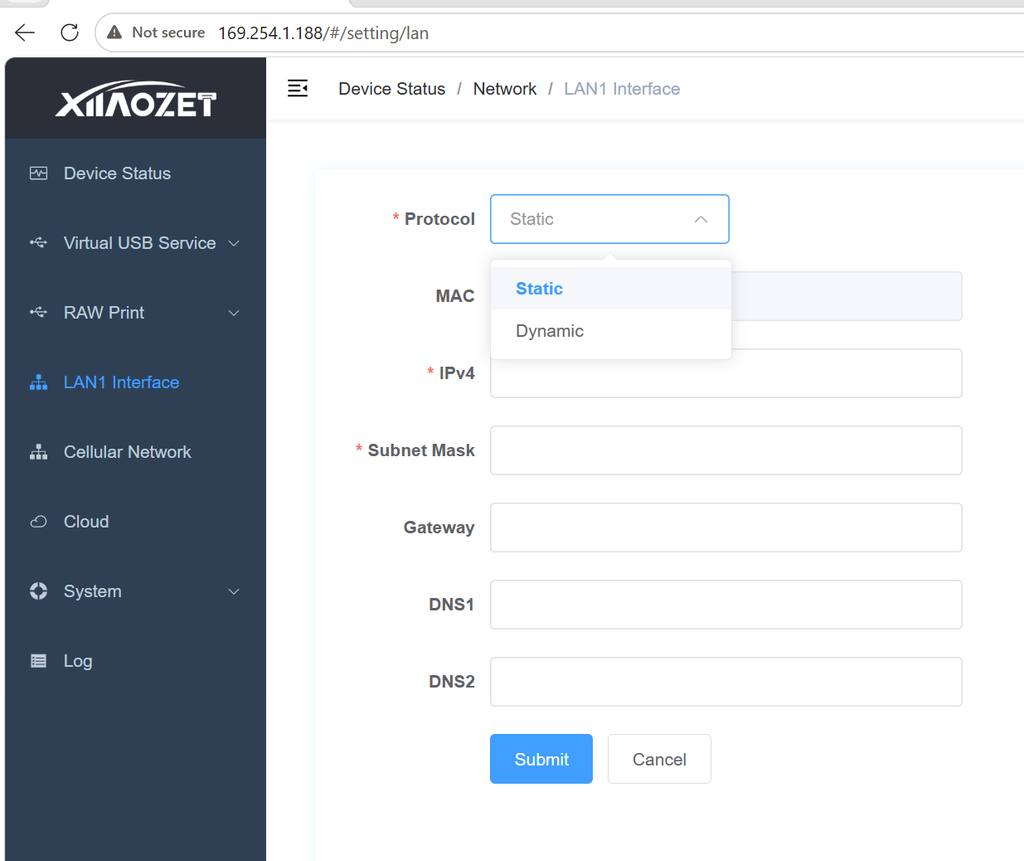
For example, if your network uses the 192.168.1.x subnet, you could assign 192.168.1.200, provided this address is available and appropriate for your network.
Important: Make sure the IP address matches your network configuration. If you are unsure which IP address to use, please consult your network administrator.
Step 5: Reconnect the LK301E to Your Network
- Disconnect the Ethernet cable between the LK301E and your computer.
- Connect the LK301E to your network switch or router.
- Restore your computer’s Ethernet settings to their original configuration if necessary.
- Access the LK301E management interface using the new static IP address from a computer on the same network.
The LK301E should now be configured with a static IP address without requiring a DHCP server or an Internet connection.