
Error with Virtual USB Connect Client
Issue:
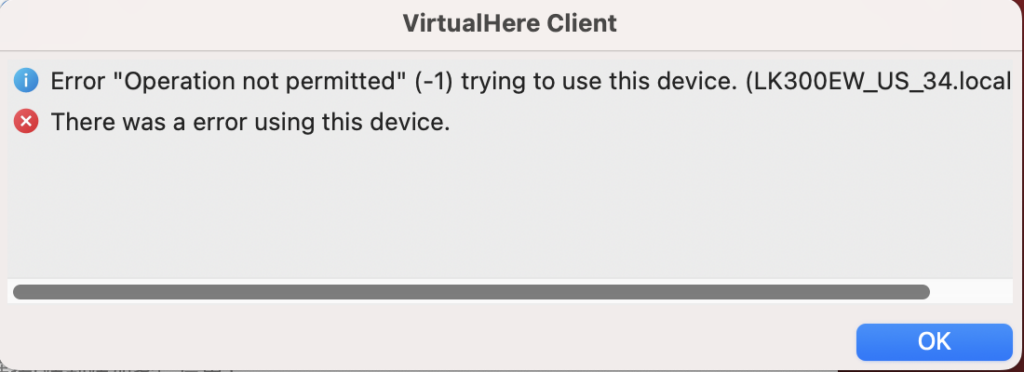
This issue is usually caused by different software versions installed on the Windows system and the macOS system in a dual-system environment.
Please make sure both Windows and macOS are using the same software version.
Solution:
- Restart the Print Server
- Power off the print server then power on.
- Once the print server has fully restarted, reopen the Virtual USB Connect Client.
- If you are using a dual-system setup with both Windows and macOS, please also install the same version of the software on your Windows system. You can download it from here: Windows2
- If the issue persists after following the above steps, please contact our support team for further assistance.