
Step1 : How to Configure Print Server to Connect to the Local Network
The print server can be connected to the network either through a wired or wireless connection.
Note: Please select only one method you prefer for connection.
Method One: Wireless Network Connection (via Automatic Popup Page)
The process can be completed via a computer or a smartphone.
(Note:Here are the network configuration steps for when the print server is in its initial state. )
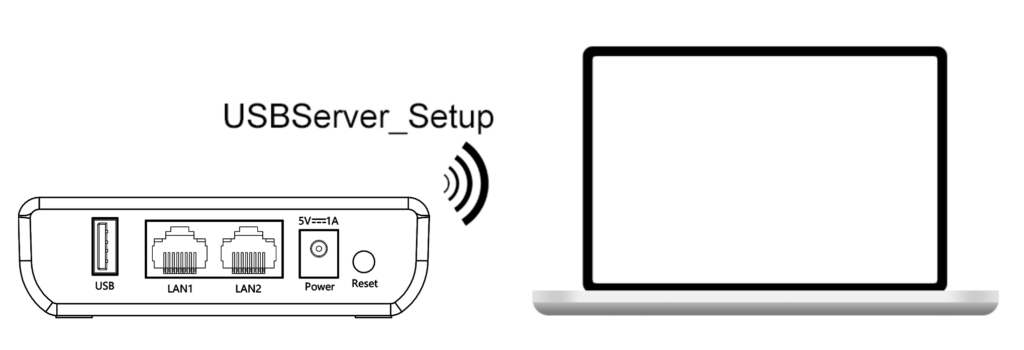
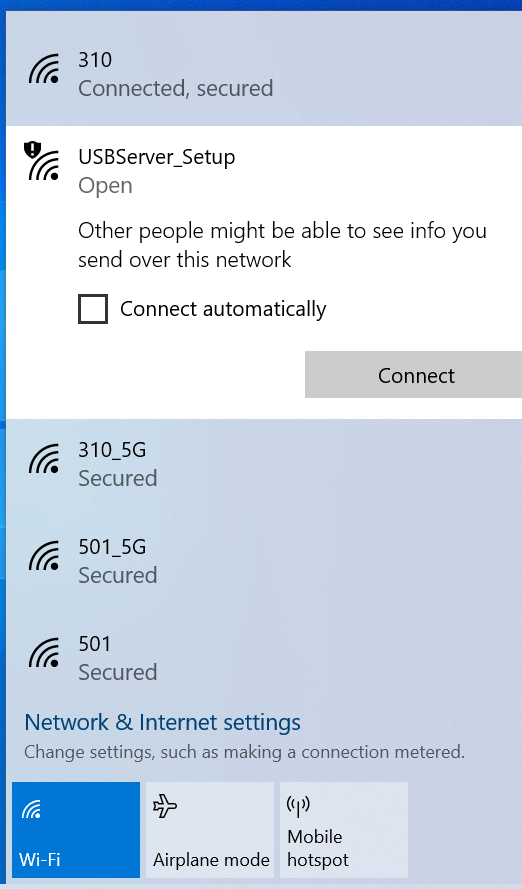
- Locate and connect to the Wi-Fi network named “USBServer_Setup” from your computer’s available networks list.
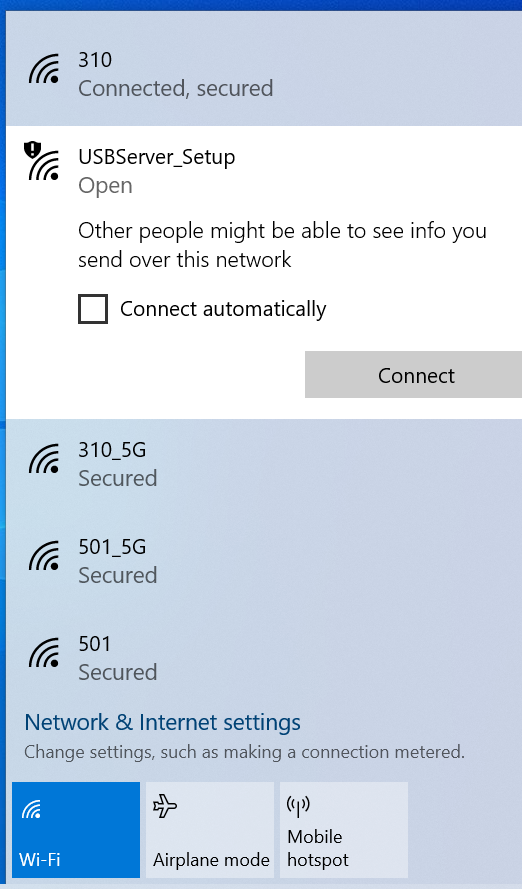
2.Once you connect to USBServer_Setup, a network setup page will automatically pop up on your computer or phone.
Note: If the network setup page did not automatically pop up, please setup network via Management Interface turn to Method Three.
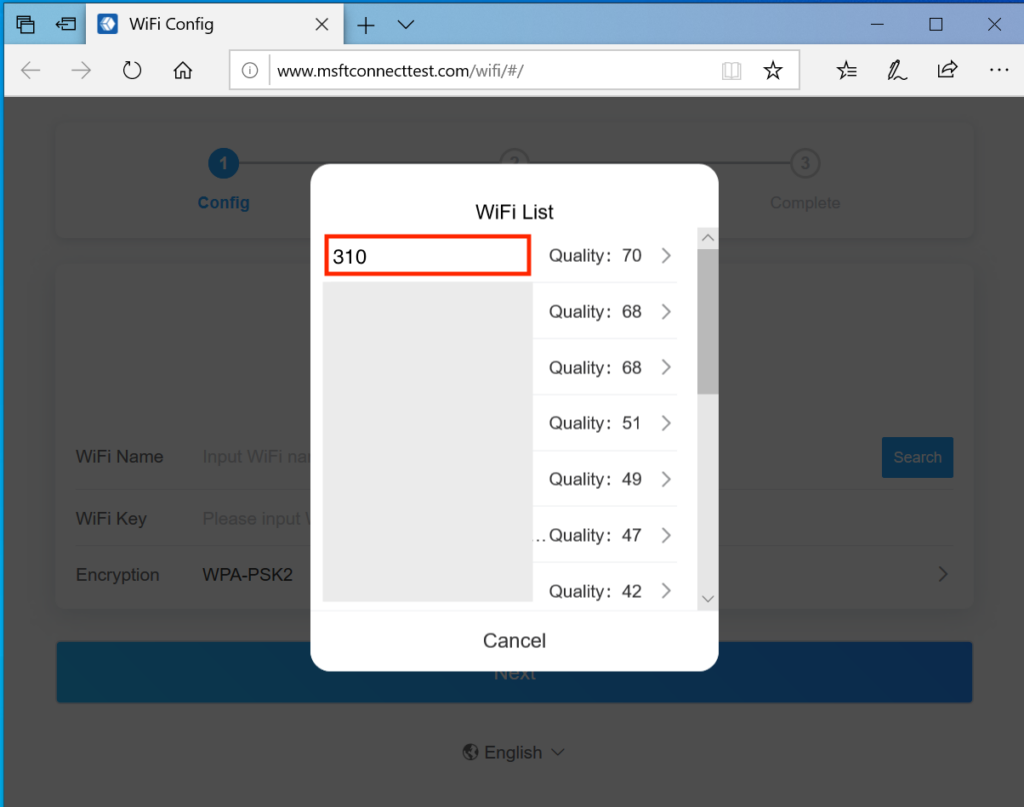
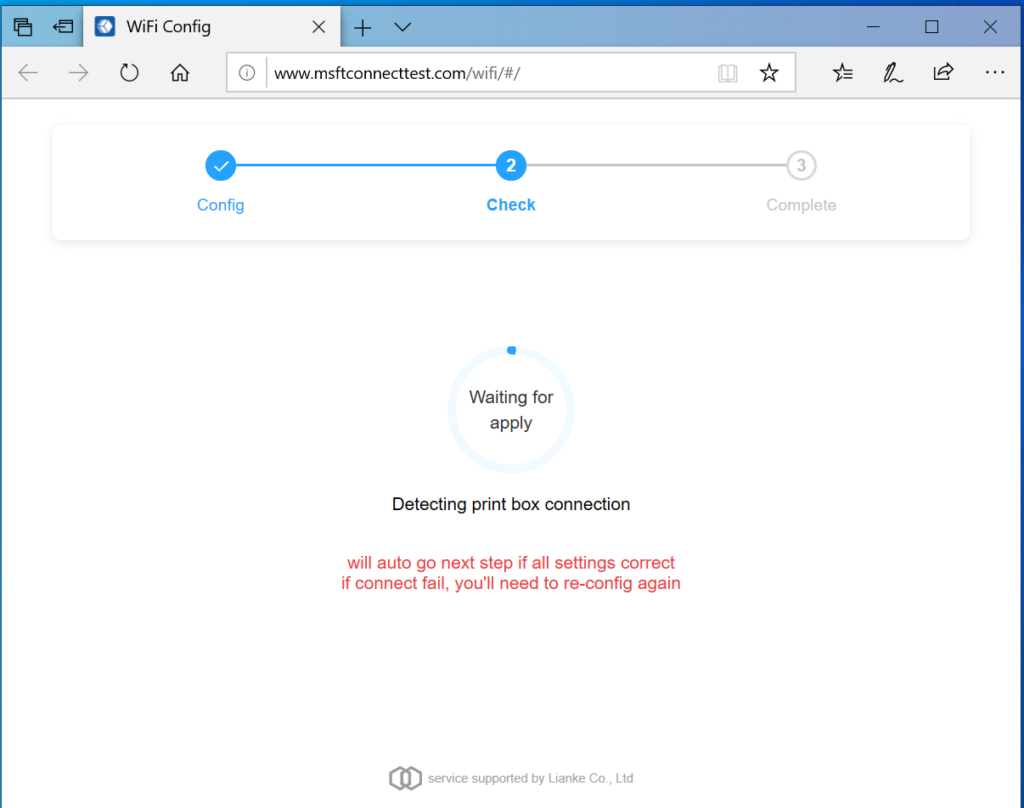
3.Simply select your 2.4G Wi-Fi and enter your Wi-Fi password. The printer server will then automatically configure the Wi-Fi parameters.
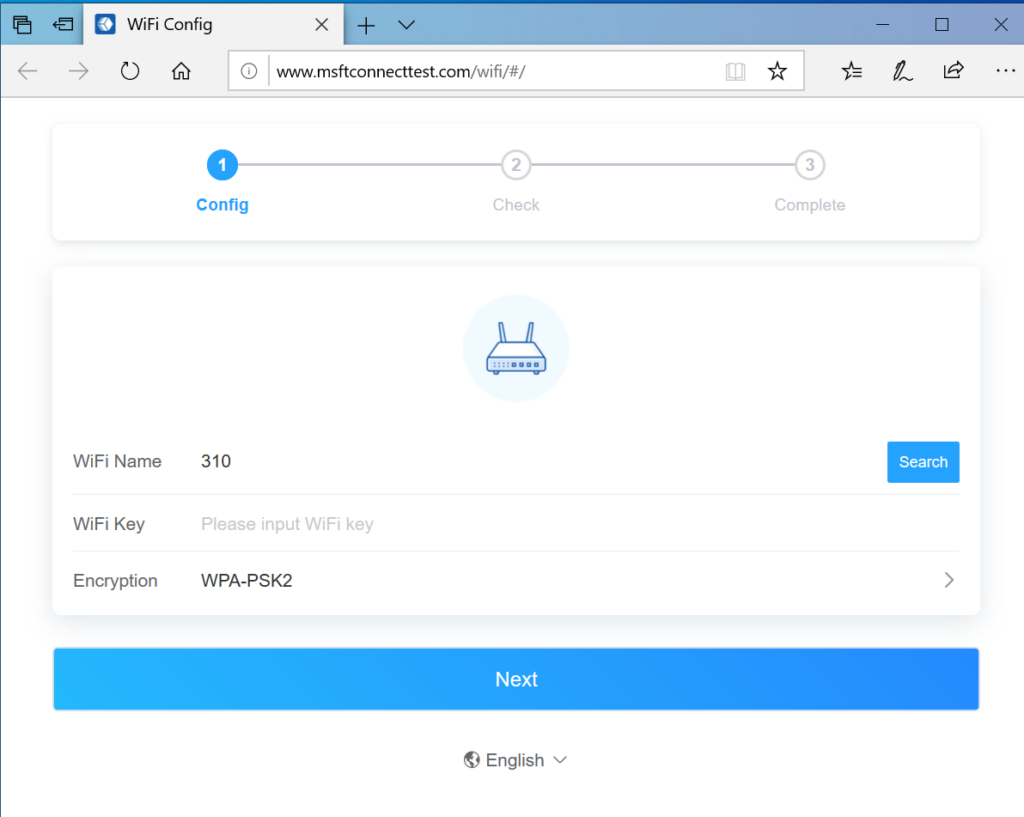
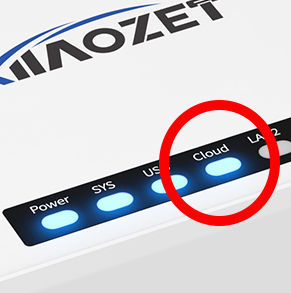
4.Wait for about 1 minute, and when the cloud indicator light stays steadily lit, it indicates successful network setup.
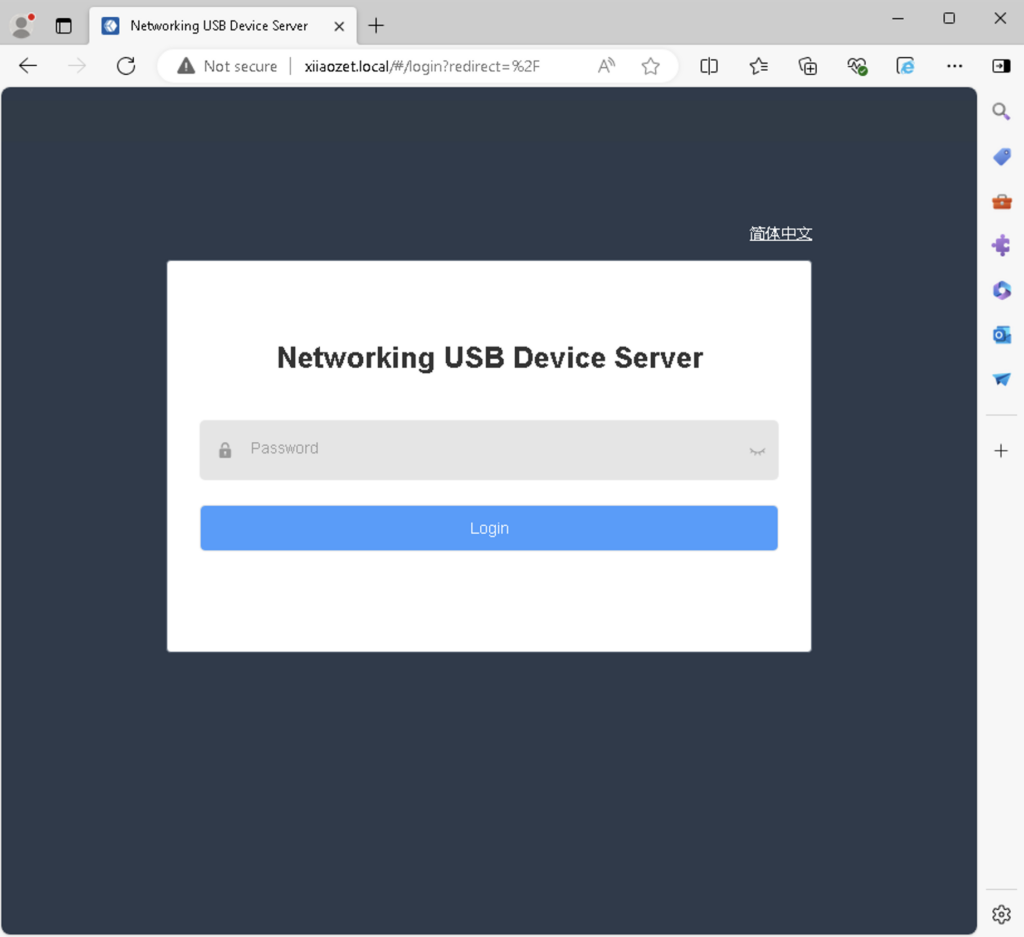
5. Open a browser and enter ‘xiiaozet.local’ to access the web management page. Default password: admin. If the page loads successfully, it means the print server is connected to the network and can communicate with your computer.
Method Two: Wireless Network Connection (via Management Interface)
1. Locate and connect to the Wi-Fi network named “USBServer_Setup” from your computer’s available networks list. ( If you can not find “USBServer_Setup”,please press the reset button for 5s to restore initial settings.)
2. Once connected to “USBServer_Setup” access the print server’s management interface by entering the IP address 192.168.188.188 into your web browser.
3. Enter the key “admin” in the provided key box and click “Login”
4. Navigate to the Wi-Fi Setup Wizard in the toolbar and click the “Start” button.
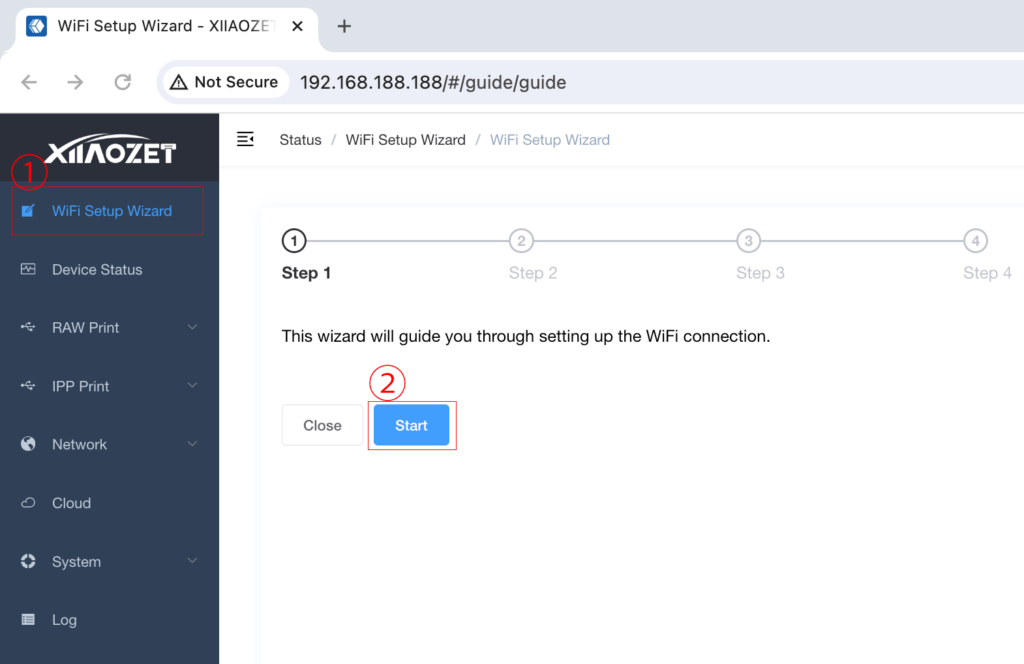
5. Upon starting, select your desired 2.4G Wi-Fi network from the search results.
(Note: Ensure this Wi-Fi network is on the same local network as the computer where printing tasks will occur.)
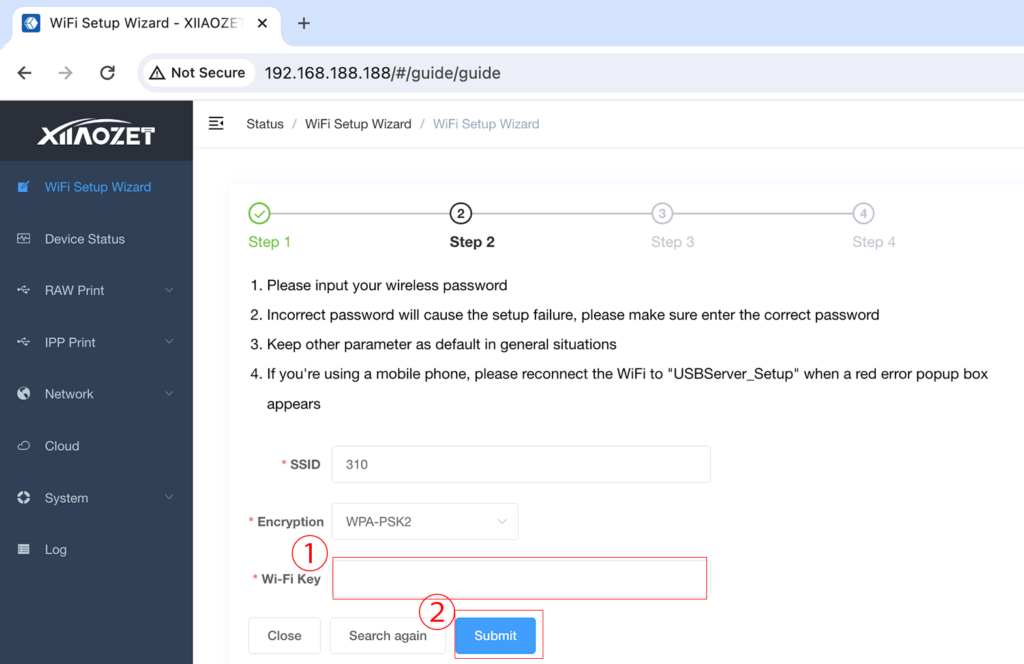
6. Enter the password for the selected Wi-Fi in the Wi-Fi key box and click the “Submit” button.
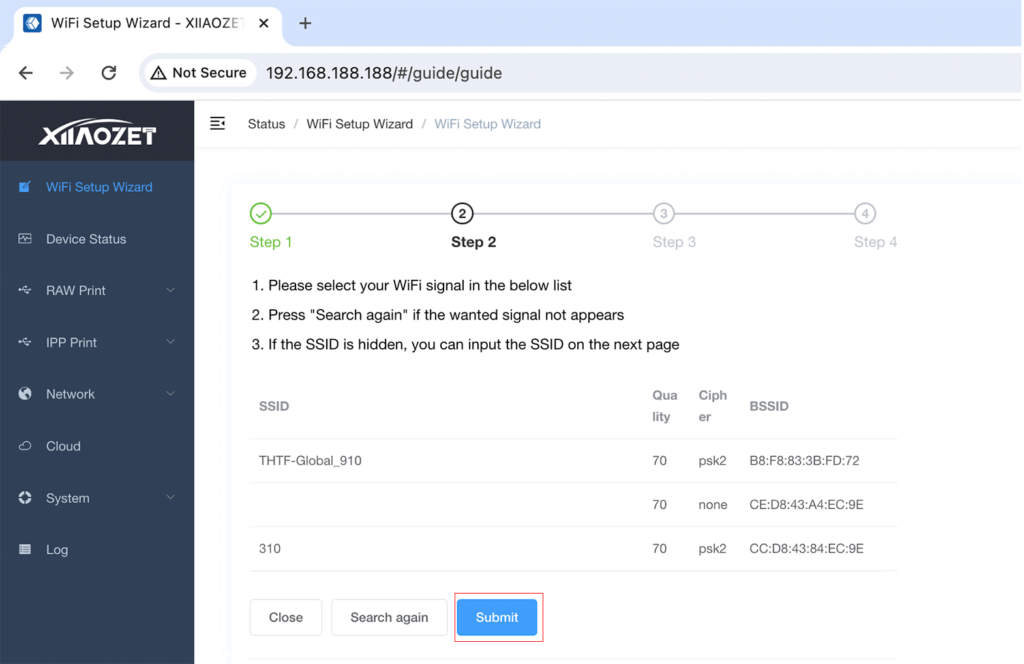
7. After submission, the print server will proceed to save, reboot, and configure the Wi-Fi parameters. Allow 30-60 seconds for this process.
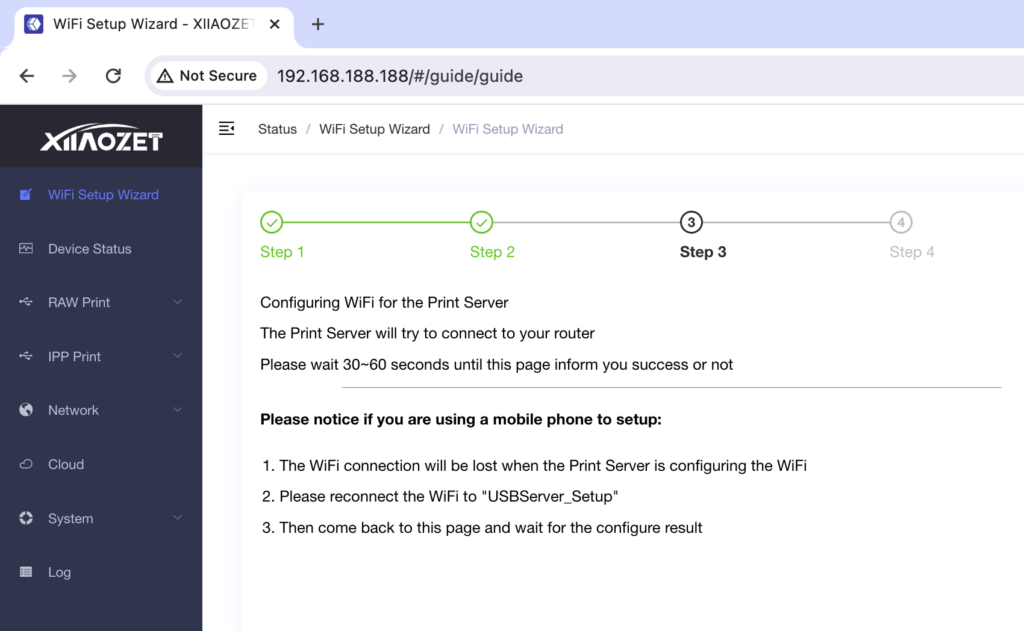
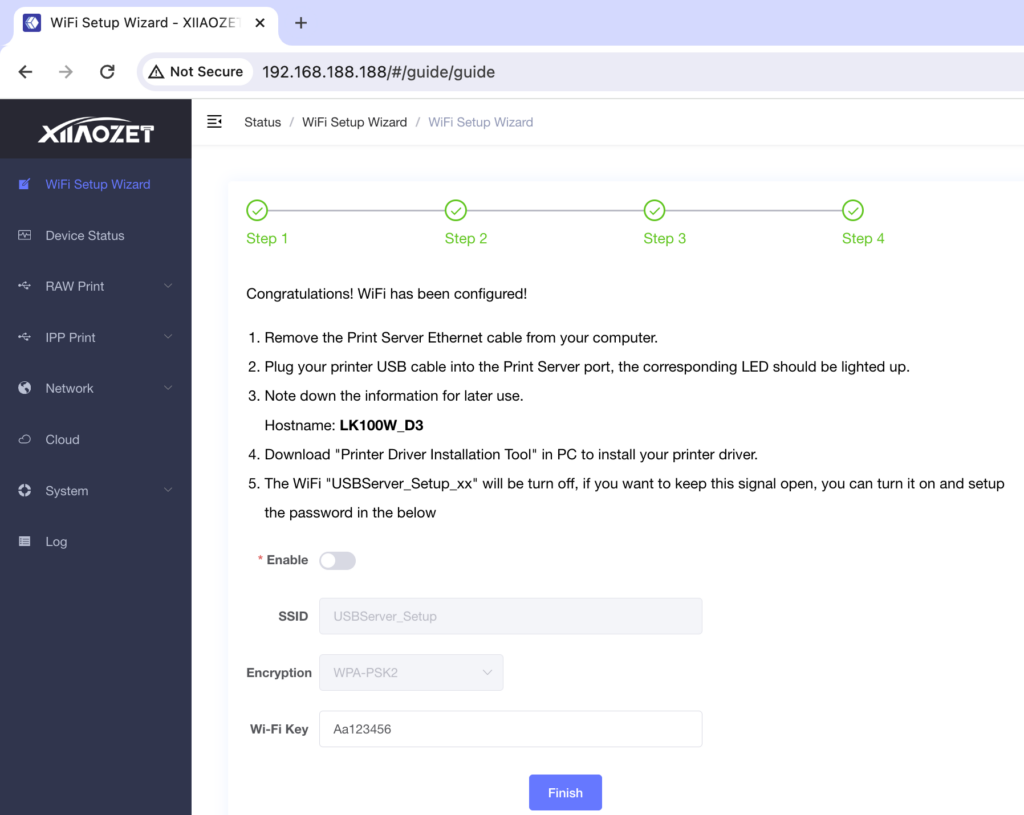
8. Observe the Cloud indicator light, which stays on to indicate successful configuration.
Method Three: Wired Connection
Note: When using a wired connection, ensure that the router or switch connected to the print server can access the internet properly and is within the same local area network as the computer.
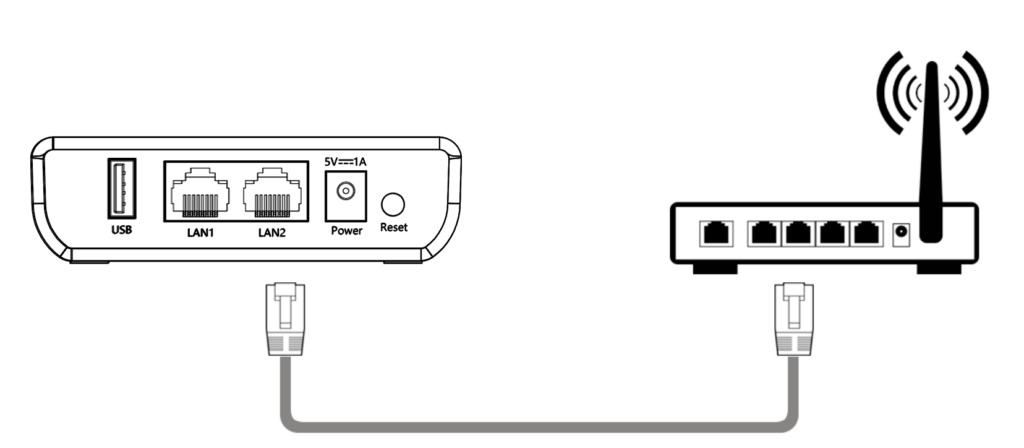
1.After powering on the print server and connecting the USB device, use an Ethernet cable to connect the LAN1/LAN2 port of print server to the router or switch.
2.The print server will obtain an IP address assigned by the router’s DHCP.
3.The LAN1/LAN2 indicator remains illuminated, indicating that the wired network setup is complete.
Note: If your local network doesn’t use DHCP for IP assignment, or if you prefer to assign a specific IP address exclusively for the print server, you’ll need to manually configure the IP address for the print server.
Net Step: Add your printer to the computer
After completing the network configuration, please add a printer on your computer. Refer to the tutorial on adding a printer.
I cannot connect the LK300W wireless to a home network. The setup page shows a red “X” and indicates that the connection failed. This is in home wifi services, not mobile. HELP-thanks
Network configuration failure may occur due to the following reasons:
1.Check for any spaces or mixed case letters.
2.Is the connected Wi-Fi 5G? Only connects to 2.4 GHz Wi-Fi.
3.Does the connected network require reauthentication? For example, School networks. When connecting, a webpage pops up requiring you to enter your account and password to connect. This network cannot be supported. Can you connect to other Wi-Fi networks?
4.If your router can be restarted, try reconnecting to the network after restarting it. It’s possible that the Printbox didn’t obtain an IP address.
5.If none of the above resolves the issue, try connecting to the network using an Ethernet cable.
Try following these steps? If a wired network connection is available, it may be that the Wi-Fi settings are incompatible. Refer to the settings for the three method and reconnect.
IT WILL NOT SHOW A WIFI SERVER NAMED USBSERVER_SETUP
Please follow this troubleshooting “Unable to Find the “USBServer_Setup” Wi-Fi”
When I try and set a static IP address on the LAN connection *Mac is grayed out and wont let me set a wired LAN connection
When setting a static IP, you don’t need to modify the MAC address. You only need to set the IP address itself. You can follow this tutorial for detailed steps: https://www.xiiaozet.net/how-to-set-a-static-ip-address-for-a-print-server/
How can I connect to my wireless print server from Android or iphones. Seems hot or miss on seeing the HP laserjet model1320
You need to download our app.Please follow this guide: https://www.xiiaozet.net/how-to-install-and-use-the-app/