
Step 2: Connect Dye-Sublimation Printer to your computer over the network using the Virtual USB Tool
Download and install the Virtual USB Connect Tool.
Connecting / Disconnecting to / from a Dye-Sublimation Printer
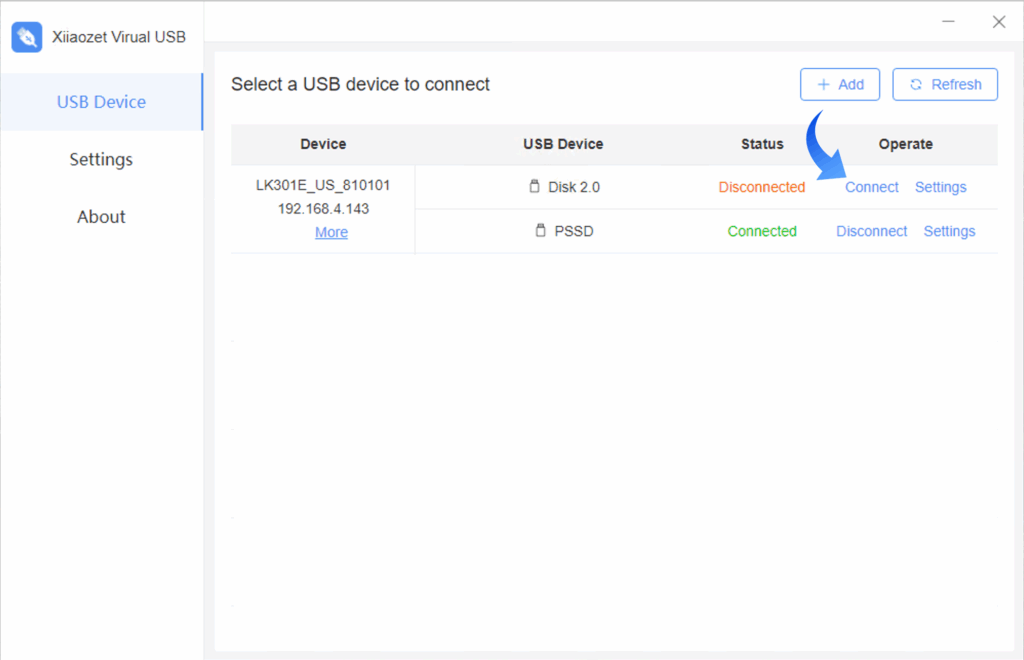
- Run the “Virtual USB Client” software after installation.
- The software will automatically detect USB servers on the local network and display connected device information.
- Select the Dye-Sublimation Printer you wish to connect to. Click “Connect” to establish a connection. The status will change to “Connected”.
- This action simulates a virtual connection between your Dye-Sublimation Printer and the computer.
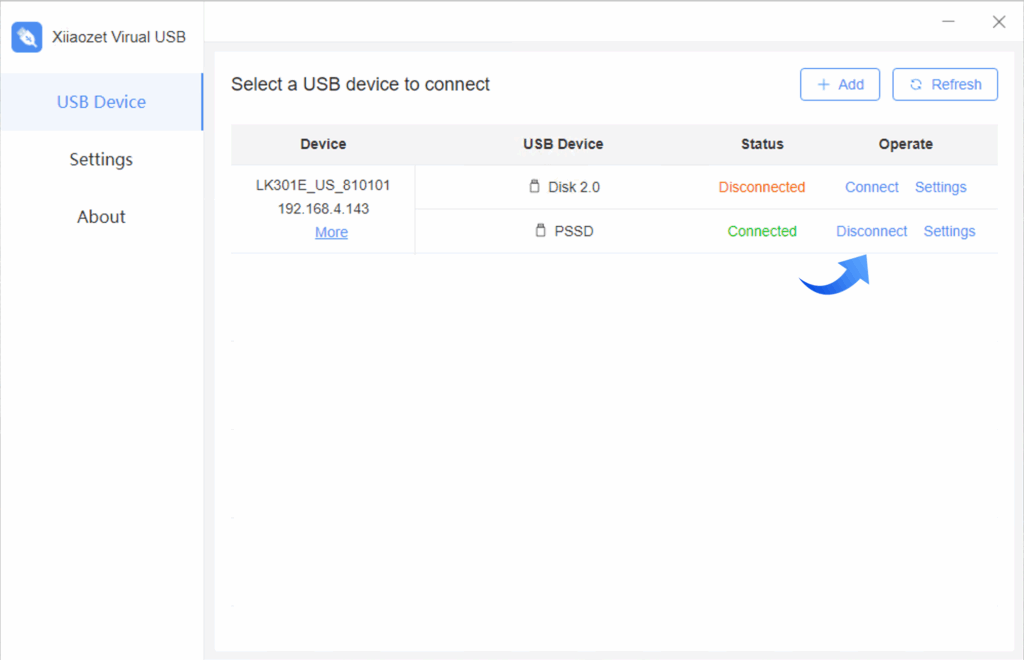
- Disconnect the device (if needed):
- In the tool, click “Disconnect” to release the Dye-Sublimation Printer so that it can be used by another computer.
Important Notes:
- Each a Dye-Sublimation Printer can only be connected and controlled by one computer at a time.
- If another computer needs to use a Dye-Sublimation Printer, please disconnect it from the current computer first.
- Ensure your computer is on the same local network as the print server to ensure proper discovery and connection.