
LK100EW
Get Started For Windows
Step 1: Network Configuration (Connect the Box)
Before adding a printer, the device must be connected to your local network.
|
Option A: Wired (Plug & Play) 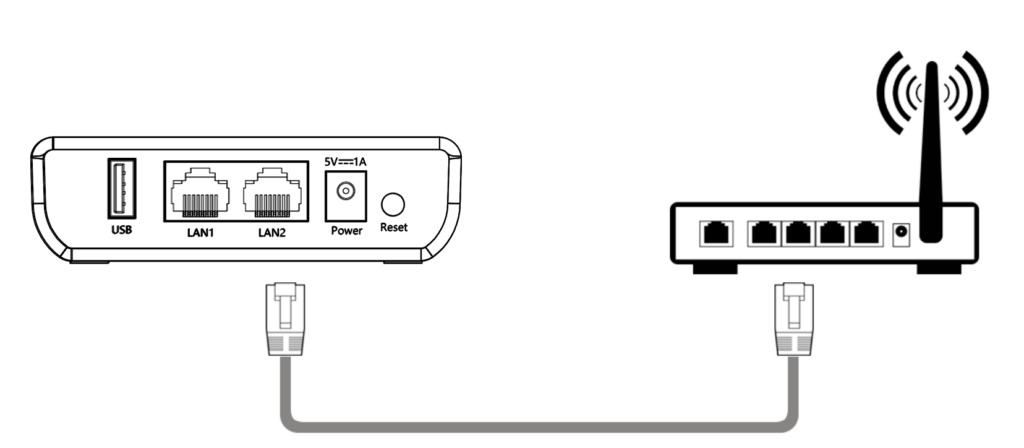 |
Option B: Wireless (Wi-Fi) 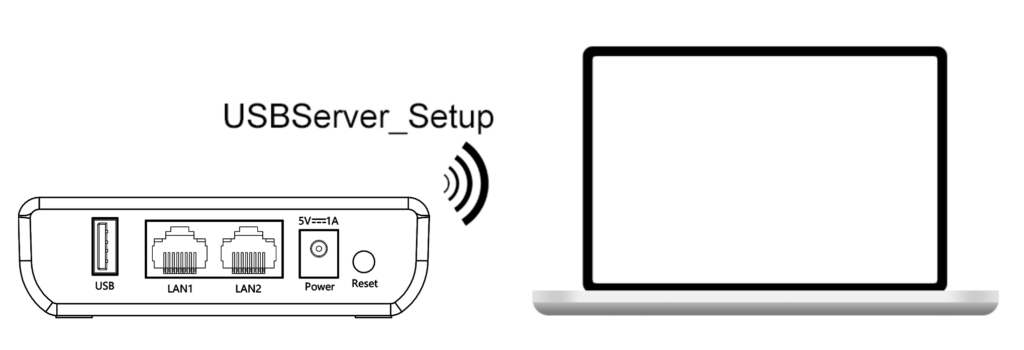 |
|---|---|
|
Scenario: Your router is right next to the Print Server |
Scenario: The router is far from the printer, or you prefer a clean, cable-free desk |
|
Quick Verdict: Most Stable. Plug-and-play. |
Quick Verdict: Flexible & Convenient. |
|
What to do: |
What to do: |
Step 2: Add Your Printer/ Scanner / USB Device
Driver First: Make sure the device driver is already installed on your computer. (Tip: Try plugging the printer directly into your PC via USB cable first to confirm it works correctly).
One Method Only: Choose only one path to avoid software conflicts on your computer.
|
Device Type |
Standard Office Printers |
Special Printers & Scanning |
Other USB Devices |
|---|---|---|---|
|
Example Models |
Printers in the Compatible List, Most HP, Epson, Brother laser or inkjet models, Thermal label printer |
Scanning functions of multi-function printers, Canon LBP Printer (CAPT Series), Ricoh, Dye-sublimation(DNP), 3D printers, Heat Transfer Printer… |
Scanners, U-disks, or Security Dongles… |
|
The Connection Path |
Path A: Adds the printer directly to your computer’s OS. Works just like a local printer |
Path B: VirtualUSB Software-Linked Connection. allows your PC to ‘see’ the device as if it’s plugged in directly. |
Path B: VirtualUSB Software-Linked Connection. allows your PC to ‘see’ the device as if it’s plugged in directly. |
|
Guide Link |
This list is currently being updated. If you do not find your issue listed, please provide your issue to us, and we will respond within 24 hours.
Network Issues
Printer Issues
Virtual USB Connection Issues
Virtual USB Connect Tool
Note:
If you are unable to download or use Download 1, please switch to Download 2. If both tools fail to function, please contact us for further assistance.
System Requirements: Windows7/8/10/11
Applicable models: LK100EW, LK300EW
Function:
1. Automatically identify print servers within the local area network, retrieve device information such as IP addresses and serial numbers (SN), and list connected devices on the print server.
2. Implement USB data cable insertion and removal through software.
Printer Quick Installation Tool
Note:
1. Printers in the Compatible List can be installed through the quick installation tool. For printers whose drivers are not included in the tool’s database, please use the Virtual USB Connect Tool to establish a connection.
2. When adding a printer in the compatible list, if the Quick Installation Tool cannot be downloaded or used, please add the printer manually.
System Requirements: Windows7/8/10/11
Applicable models: LK100W, LK300W, LK100EW, LK300EW
Function:
1. Automatically detect print servers within the local area network, obtaining device information such as IP addresses and SN codes.
2. Automatically identify and download drivers matching the recognized printer models.
3. Automatically install the downloaded drivers.
4. Automatically associate with the print server port for quick printer addition.
Get Started For macOS
Step 1: Network Configuration (Connect the Box)
Before adding a printer, the device must be connected to your local network.
|
Option A: Wired (Plug & Play) |
Option B: Wireless (Wi-Fi) |
|---|---|
|
Scenario: Your router is right next to the Print Server |
Scenario: The router is far from the printer, or you prefer a clean, cable-free desk |
|
Quick Verdict: Most Stable. Plug-and-play. |
Quick Verdict: Flexible & Convenient. |
|
What to do: |
What to do: |
Step 2: Add Your Printer/ Scanner / USB Device
Driver First: Make sure the device driver is already installed on your computer. (Tip: Try plugging the printer directly into your PC via USB cable first to confirm it works correctly).
One Method Only: Choose only one path to avoid software conflicts on your computer.
|
Device Type |
Standard Office Printers |
Special Printers & Scanning |
Other USB Devices |
|---|---|---|---|
|
Example Models |
Printers in the Compatible List, Most HP, Epson, Brother laser or inkjet models, Thermal label printer |
Scanning functions of multi-function printers, Canon LBP Printer (CAPT Series), Ricoh, Dye-sublimation, 3D printers, Heat Transfer Printer… |
Scanners, U-disks, or Security Dongles… |
|
The Connection Path |
Path A: Adds the printer directly to your computer’s OS. Works just like a local printer |
Path B: VirtualUSB Software-Linked Connection. |
Path B: VirtualUSB Software-Linked Connection. |
|
Guide Link |
This list is currently being updated. If you do not find your issue listed, please provide your issue to us, and we will respond within 24 hours.
Network Issues
Printer Issues
-
“Unable to Locate the Printer” Error
-
Print Server Restarts or Shuts Down When Connecting a USB Cable to a Printer
-
How to Upgrade Firmware on Print Server
-
How to Fix HP Printer Not Working Properly After Connecting to a Print Server?
-
What to do if your Mac cannot complete the setup or prints incorrectly?
Virtual USB Connection Issues
Virtual USB Connect Tool
System Requirements: MacOS 12/13/14 (Note Microphones/webcams wont work on Mac)
Applicable models: LK100EW, LK300EW
Function:
1. Connect 1 USB device.
2. Implement USB data cable insertion and removal through software.
Mobile Printing is currently only available in Asian countries, where we have tested the stability and reliability of the product. If you are in another region and interested in our mobile printing service, please feel free to contact us. We will do our best to provide you with a trial opportunity or provide you with more relevant information.
Printers in the printer compatibility list can be printed through our app. Not support Dye-sublimation, 3D printers, Heat Transfer Printer.
Installation and Usage of APP
Printers in the Compatible List can be installed through adding IP Address. For other printers, please use the Virtual USB Connect Tool to establish a connection.
Please enter the model number directly into the search bar. For example, if your printer is an HP Color LaserJet 3600, you can type “3600” to search. As long as your printer uses a driver that is compatible with the printer models supported by our USB print server, it will work. If you do not find your model, it does not necessarily mean it is incompatible; please contact us to confirm compatibility.